
Shopify & Platform
Why Shopify themes aren't enough (and what to do instead in 2026)
10 min read
Shopify runs your commerce. Framer runs your design. Together, they give you a storefront that looks fully custom — without a developer or a six-figure agency bill. Here's exactly how the stack works and how to get your store live in days.
eCommerce Strategy
11 min read
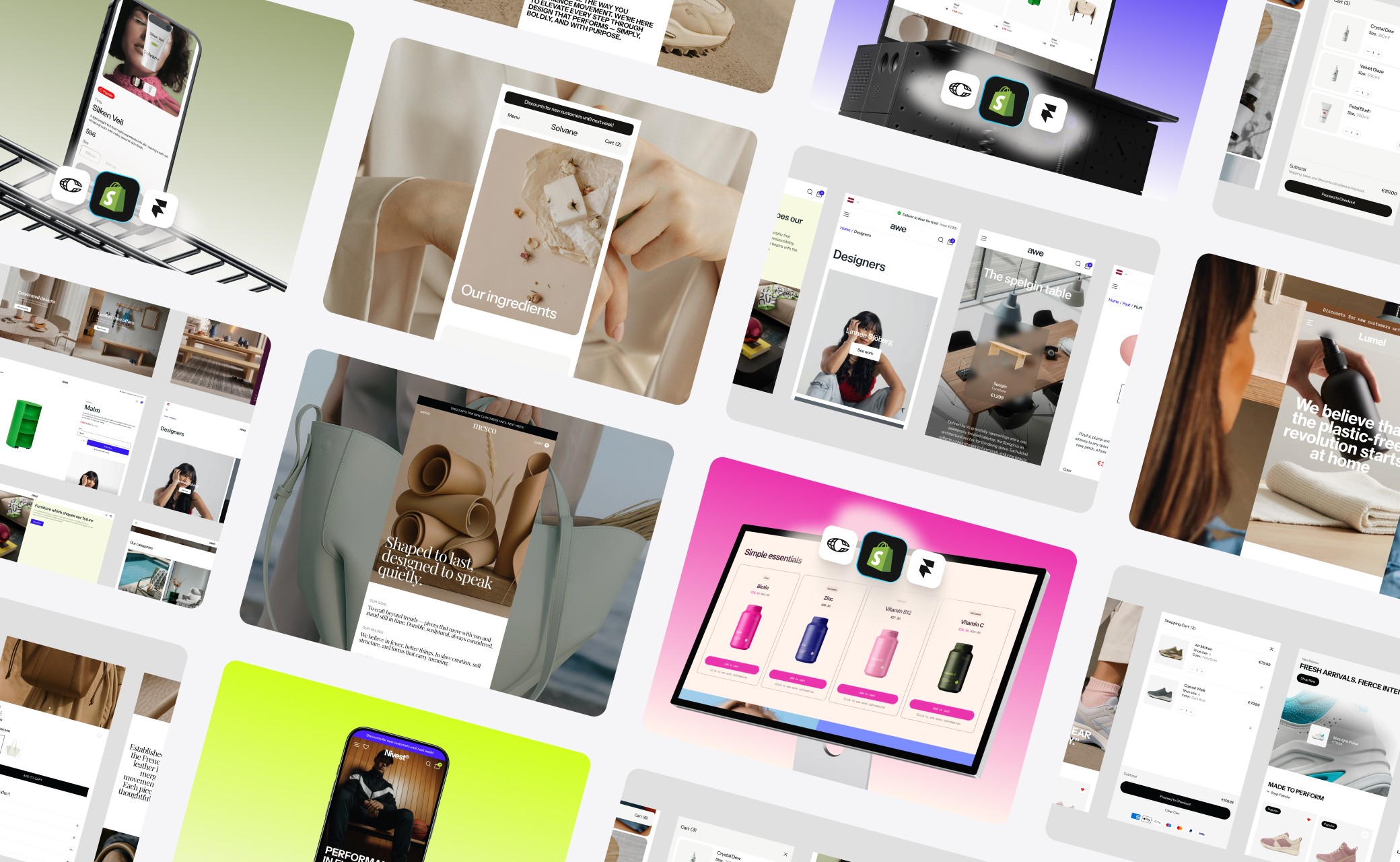
Shopify is the dominant infrastructure for eCommerce. It handles products, inventory, payments, orders, and customer accounts better than almost anything else at its price point. But the front-end it gives you — the part customers actually see and interact with — is locked behind a templating language called Liquid, and customizing it meaningfully requires developer expertise most founders don't have.
There's now a better path. By separating Shopify's back-end from the visual front-end and building that front-end in Framer, you get unlimited design freedom without sacrificing any of Shopify's commerce reliability. This guide explains exactly how that works, what tools you need, and how to go from zero to live store.
The term 'headless commerce' gets thrown around in developer circles, but the concept is straightforward. In a traditional Shopify setup, the 'head' — the visual storefront — and the 'body' — the commerce back-end — are one tightly coupled system. When you choose a Shopify theme, you're choosing both the design and the structure of how that design connects to your products.
In a headless setup, these two layers are separated. Shopify continues to manage everything it's built for: your product catalog, checkout, payment processing, order management, and customer accounts. But the storefront — the part customers browse — is built in a completely separate tool. That tool communicates with Shopify via its Storefront API, pulling product data in real time.
The result is that you can design your storefront in any tool that supports API connections, without touching Shopify's theming system at all. For brands and designers who want full creative control, this is transformative.
The historical barrier to headless commerce was technical complexity. Setting up API connections, managing authentication, building cart and checkout flows — these required experienced developers. That barrier has now been removed for Framer users.
Framer started as a prototyping tool and has evolved into a fully production-capable website builder with one critical advantage over everything else: it's a genuine visual design environment, not a drag-and-drop content editor built on top of rigid templates.
In Framer, you design the way you'd design in Figma — with full control over every element's size, position, typography, and behavior. The difference is that Framer outputs real, published, production-grade web pages. What you design is what gets deployed.
For eCommerce specifically, Framer gives you:
Complete layout freedom — any section, any proportion, any arrangement
Built-in animation and interaction tools that don't require JavaScript knowledge
A component system that lets you define a design element once and use it consistently across every product page
Framer CMS, which syncs directly with your Shopify product catalog via Framer Commerce
Native responsive breakpoints across desktop, tablet, and mobile
Framer Commerce is a third-party integration — a Shopify app plus a Framer plugin — that handles the connection between Framer's visual editor and Shopify's back-end. Without it, you'd need to build API connections yourself. With it, the connection is plug-and-play.
Here's what Framer Commerce manages automatically once installed:
Product syncing: Your Shopify catalog — products, variants, prices, descriptions, images, and inventory status — syncs into Framer's CMS automatically. Add a new product in Shopify and it appears in your Framer store without any manual work.
Commerce components: Framer Commerce provides over 40 pre-built components including add-to-cart buttons, variant selectors, product image galleries, cart drawers, quantity controls, subscription toggles, and checkout redirect flows.
Cart management: The cart is handled natively within Framer, with real-time item counts, price calculations, and discount applications.
Checkout: When a customer is ready to purchase, they're redirected to Shopify's native checkout. This means Shopify Payments, Shop Pay, Apple Pay, and every other payment method Shopify supports works without any additional configuration.
Customer accounts: Shopify's customer account system works alongside your Framer storefront, handling order history, saved addresses, and login flows.
Multi-currency and multi-region: Shopify Markets integration means your prices display in local currencies automatically.
Framer Commerce pricing starts at $12 per month, which is a negligible cost relative to what it replaces. A developer building equivalent functionality from scratch would require days or weeks of work.
Building a Framer-powered Shopify store requires three tools. Here's what each one does and what it costs:
Shopify — from $5/month: Your commerce back-end. Manages products, orders, payments, and customer accounts. You don't need a Shopify theme — you're using Shopify purely as an infrastructure layer. The Starter plan ($5/month) works if you only need checkout links, but the Basic plan ($39/month) gives you a full admin experience including reports and multiple staff accounts.
Framer — from free: Your visual design and hosting platform. Framer's free plan lets you build and test. A paid plan (starting around $5/month for personal, higher for custom domains and CMS capacity) is required to publish with a custom domain and handle production-level CMS collections.
Framer Commerce — from $12/month: The integration layer. Connects Framer to Shopify's Storefront API, provides pre-built commerce components, and manages product syncing.
In total, you're looking at roughly $50–60 per month for a fully operational, production-grade headless Shopify store built in Framer. Compare that to the $5,000–$30,000+ cost of a custom-built headless storefront from a development agency, and the economics are clear.
Fact
The real cost of custom Shopify development isn't just the upfront price — it's the timeline (typically 2–4 months), the ongoing maintenance costs every time you want a change, and the creative constraints that come with depending on a developer for every update.
Even with Framer and Framer Commerce handling the heavy lifting, starting a store from a blank Framer canvas is still a significant undertaking. You need to design and structure every page, configure every Framer Commerce component, set up your CMS schema, optimize for mobile, and test everything before going live.
A well-built Framer eCommerce template eliminates all of that upfront work. The right template is not just a visual design — it's a complete, integrated storefront architecture that's pre-configured for Framer Commerce and ready to connect to your Shopify store.
Templates from Framlix, for example, include:
Product syncing: Your Shopify catalog — products, variants, prices, descriptions, images, and inventory status — syncs into Framer's CMS automatically. Add a new product in Shopify and it appears in your Framer store without any manual work.
Every key storefront page: homepage, collection pages, product detail pages, cart, and supporting pages
All Framer Commerce components pre-configured and integrated into the design
A Framer CMS structure already mapped to the Shopify product schema
Mobile-responsive layouts tested across all breakpoints
Performance-optimized builds that score 99+ on Lighthouse
Modular, reusable section components you can rearrange, duplicate, or remove in Framer's editor
The template is your starting point, but unlike a Shopify theme, it's not a ceiling. Every element is editable. You can change anything — typography, colors, layouts, sections, animations — and none of it requires code.
Step 1 — Set Up Your Shopify Store
If you don't already have a Shopify account, create one. Add your products, set up your payment methods, and configure your shipping and tax settings. Make sure your product data is clean — clear titles, accurate descriptions, good images, and properly configured variants.
You don't need to set up a Shopify theme or customize the Shopify storefront in any way. Shopify is purely your back-end here.
Step 2 — Install Framer Commerce
Go to framercommerce.com and sign up. You'll install the Framer Commerce app on your Shopify store (it appears in the Shopify App Store) and connect it to your Framer workspace. This connection is what allows your Shopify product catalog to sync into Framer's CMS.
Step 3 — Choose and Purchase Your Template
Browse the available Framer eCommerce templates. Look for templates designed for your product category — a supplements brand has different design needs than a fashion brand or a furniture store. Use the live preview to evaluate the template's layout, interactions, and overall feel before purchasing.
Step 4 — Duplicate the Template Into Framer
Once purchased, you'll receive access to a Framer project file. Open it in Framer and it creates a fully editable copy in your workspace. From here, the template is yours — every element is unlocked and available to edit.
Start with the global styles: update your brand colors, set your typography, and replace placeholder logo with yours. These changes cascade across the entire template instantly.
Step 5 — Sync Your Products
In Framer, connect the CMS collections to your Framer Commerce integration. Your Shopify products will populate automatically into the template's product listing and detail pages. Review each product page to ensure all variants, pricing, and images are displaying correctly.
Step 6 — Customize Your Design
Now comes the part that makes this worthwhile: make the store yours. Adjust layouts, swap sections, update copy, add animations. Framer's visual editor makes all of this drag-and-drop. Changes that would take a developer hours to implement take you minutes.
Step 7 — Test and Publish
Before going live, test the full purchase flow: add a product to cart, apply a discount code, and complete a checkout. Verify that the order appears in your Shopify admin. Check mobile layouts on an actual device. Once everything looks right, publish from Framer and point your custom domain.
Will my existing Shopify apps still work? Most will. Apps that operate at the checkout and order management level — reviews platforms, loyalty programs, email capture, inventory management — continue to function normally because they're not dependent on the Shopify front-end. Some storefront-level apps (like certain page builders or upsell popups) may need to be replaced with Framer Commerce's built-in equivalent.
What if I want to go back to a Shopify theme? You can. Your Shopify store and its theme are completely separate from your Framer storefront. Switching back is simply a matter of pointing your domain back to Shopify's hosting. Nothing is permanent.
Is Framer good for SEO? Yes. Framer generates clean, server-side-rendered HTML with proper semantic structure. Pages score 99+ on Lighthouse out of the box. You can set meta titles, descriptions, and Open Graph data for every page directly in Framer's settings panel.
How do I handle blog content? Framer has a built-in CMS that handles blog content separately from your Shopify product catalog. You can build a full editorial blog in Framer alongside your store, all within the same project.
The technical case for Framer-powered Shopify stores is strong — lower cost than custom development, more flexibility than Shopify themes, faster launch timelines than either. But the real reason to consider this approach is simpler than that.
Your store is the primary brand touchpoint for every customer who discovers you online. It's where they form their first impression of your brand, decide whether to trust you, and make purchasing decisions. A generic theme makes a generic impression. A store that's been designed — really designed, with intention — communicates something different: that you take your brand seriously.
In a market where every niche is competitive, that impression matters more than most founders give it credit for. The tools to make it happen have finally caught up with the ambition.
Shopify is the dominant infrastructure for eCommerce. It handles products, inventory, payments, orders, and customer accounts better than almost anything else at its price point. But the front-end it gives you — the part customers actually see and interact with — is locked behind a templating language called Liquid, and customizing it meaningfully requires developer expertise most founders don't have.
There's now a better path. By separating Shopify's back-end from the visual front-end and building that front-end in Framer, you get unlimited design freedom without sacrificing any of Shopify's commerce reliability. This guide explains exactly how that works, what tools you need, and how to go from zero to live store.
The term 'headless commerce' gets thrown around in developer circles, but the concept is straightforward. In a traditional Shopify setup, the 'head' — the visual storefront — and the 'body' — the commerce back-end — are one tightly coupled system. When you choose a Shopify theme, you're choosing both the design and the structure of how that design connects to your products.
In a headless setup, these two layers are separated. Shopify continues to manage everything it's built for: your product catalog, checkout, payment processing, order management, and customer accounts. But the storefront — the part customers browse — is built in a completely separate tool. That tool communicates with Shopify via its Storefront API, pulling product data in real time.
The result is that you can design your storefront in any tool that supports API connections, without touching Shopify's theming system at all. For brands and designers who want full creative control, this is transformative.
The historical barrier to headless commerce was technical complexity. Setting up API connections, managing authentication, building cart and checkout flows — these required experienced developers. That barrier has now been removed for Framer users.
Framer started as a prototyping tool and has evolved into a fully production-capable website builder with one critical advantage over everything else: it's a genuine visual design environment, not a drag-and-drop content editor built on top of rigid templates.
In Framer, you design the way you'd design in Figma — with full control over every element's size, position, typography, and behavior. The difference is that Framer outputs real, published, production-grade web pages. What you design is what gets deployed.
For eCommerce specifically, Framer gives you:
Complete layout freedom — any section, any proportion, any arrangement
Built-in animation and interaction tools that don't require JavaScript knowledge
A component system that lets you define a design element once and use it consistently across every product page
Framer CMS, which syncs directly with your Shopify product catalog via Framer Commerce
Native responsive breakpoints across desktop, tablet, and mobile
Framer Commerce is a third-party integration — a Shopify app plus a Framer plugin — that handles the connection between Framer's visual editor and Shopify's back-end. Without it, you'd need to build API connections yourself. With it, the connection is plug-and-play.
Here's what Framer Commerce manages automatically once installed:
Product syncing: Your Shopify catalog — products, variants, prices, descriptions, images, and inventory status — syncs into Framer's CMS automatically. Add a new product in Shopify and it appears in your Framer store without any manual work.
Commerce components: Framer Commerce provides over 40 pre-built components including add-to-cart buttons, variant selectors, product image galleries, cart drawers, quantity controls, subscription toggles, and checkout redirect flows.
Cart management: The cart is handled natively within Framer, with real-time item counts, price calculations, and discount applications.
Checkout: When a customer is ready to purchase, they're redirected to Shopify's native checkout. This means Shopify Payments, Shop Pay, Apple Pay, and every other payment method Shopify supports works without any additional configuration.
Customer accounts: Shopify's customer account system works alongside your Framer storefront, handling order history, saved addresses, and login flows.
Multi-currency and multi-region: Shopify Markets integration means your prices display in local currencies automatically.
Framer Commerce pricing starts at $12 per month, which is a negligible cost relative to what it replaces. A developer building equivalent functionality from scratch would require days or weeks of work.
Building a Framer-powered Shopify store requires three tools. Here's what each one does and what it costs:
Shopify — from $5/month: Your commerce back-end. Manages products, orders, payments, and customer accounts. You don't need a Shopify theme — you're using Shopify purely as an infrastructure layer. The Starter plan ($5/month) works if you only need checkout links, but the Basic plan ($39/month) gives you a full admin experience including reports and multiple staff accounts.
Framer — from free: Your visual design and hosting platform. Framer's free plan lets you build and test. A paid plan (starting around $5/month for personal, higher for custom domains and CMS capacity) is required to publish with a custom domain and handle production-level CMS collections.
Framer Commerce — from $12/month: The integration layer. Connects Framer to Shopify's Storefront API, provides pre-built commerce components, and manages product syncing.
In total, you're looking at roughly $50–60 per month for a fully operational, production-grade headless Shopify store built in Framer. Compare that to the $5,000–$30,000+ cost of a custom-built headless storefront from a development agency, and the economics are clear.
Fact
The real cost of custom Shopify development isn't just the upfront price — it's the timeline (typically 2–4 months), the ongoing maintenance costs every time you want a change, and the creative constraints that come with depending on a developer for every update.
Even with Framer and Framer Commerce handling the heavy lifting, starting a store from a blank Framer canvas is still a significant undertaking. You need to design and structure every page, configure every Framer Commerce component, set up your CMS schema, optimize for mobile, and test everything before going live.
A well-built Framer eCommerce template eliminates all of that upfront work. The right template is not just a visual design — it's a complete, integrated storefront architecture that's pre-configured for Framer Commerce and ready to connect to your Shopify store.
Templates from Framlix, for example, include:
Product syncing: Your Shopify catalog — products, variants, prices, descriptions, images, and inventory status — syncs into Framer's CMS automatically. Add a new product in Shopify and it appears in your Framer store without any manual work.
Every key storefront page: homepage, collection pages, product detail pages, cart, and supporting pages
All Framer Commerce components pre-configured and integrated into the design
A Framer CMS structure already mapped to the Shopify product schema
Mobile-responsive layouts tested across all breakpoints
Performance-optimized builds that score 99+ on Lighthouse
Modular, reusable section components you can rearrange, duplicate, or remove in Framer's editor
The template is your starting point, but unlike a Shopify theme, it's not a ceiling. Every element is editable. You can change anything — typography, colors, layouts, sections, animations — and none of it requires code.
Step 1 — Set Up Your Shopify Store
If you don't already have a Shopify account, create one. Add your products, set up your payment methods, and configure your shipping and tax settings. Make sure your product data is clean — clear titles, accurate descriptions, good images, and properly configured variants.
You don't need to set up a Shopify theme or customize the Shopify storefront in any way. Shopify is purely your back-end here.
Step 2 — Install Framer Commerce
Go to framercommerce.com and sign up. You'll install the Framer Commerce app on your Shopify store (it appears in the Shopify App Store) and connect it to your Framer workspace. This connection is what allows your Shopify product catalog to sync into Framer's CMS.
Step 3 — Choose and Purchase Your Template
Browse the available Framer eCommerce templates. Look for templates designed for your product category — a supplements brand has different design needs than a fashion brand or a furniture store. Use the live preview to evaluate the template's layout, interactions, and overall feel before purchasing.
Step 4 — Duplicate the Template Into Framer
Once purchased, you'll receive access to a Framer project file. Open it in Framer and it creates a fully editable copy in your workspace. From here, the template is yours — every element is unlocked and available to edit.
Start with the global styles: update your brand colors, set your typography, and replace placeholder logo with yours. These changes cascade across the entire template instantly.
Step 5 — Sync Your Products
In Framer, connect the CMS collections to your Framer Commerce integration. Your Shopify products will populate automatically into the template's product listing and detail pages. Review each product page to ensure all variants, pricing, and images are displaying correctly.
Step 6 — Customize Your Design
Now comes the part that makes this worthwhile: make the store yours. Adjust layouts, swap sections, update copy, add animations. Framer's visual editor makes all of this drag-and-drop. Changes that would take a developer hours to implement take you minutes.
Step 7 — Test and Publish
Before going live, test the full purchase flow: add a product to cart, apply a discount code, and complete a checkout. Verify that the order appears in your Shopify admin. Check mobile layouts on an actual device. Once everything looks right, publish from Framer and point your custom domain.
Will my existing Shopify apps still work? Most will. Apps that operate at the checkout and order management level — reviews platforms, loyalty programs, email capture, inventory management — continue to function normally because they're not dependent on the Shopify front-end. Some storefront-level apps (like certain page builders or upsell popups) may need to be replaced with Framer Commerce's built-in equivalent.
What if I want to go back to a Shopify theme? You can. Your Shopify store and its theme are completely separate from your Framer storefront. Switching back is simply a matter of pointing your domain back to Shopify's hosting. Nothing is permanent.
Is Framer good for SEO? Yes. Framer generates clean, server-side-rendered HTML with proper semantic structure. Pages score 99+ on Lighthouse out of the box. You can set meta titles, descriptions, and Open Graph data for every page directly in Framer's settings panel.
How do I handle blog content? Framer has a built-in CMS that handles blog content separately from your Shopify product catalog. You can build a full editorial blog in Framer alongside your store, all within the same project.
The technical case for Framer-powered Shopify stores is strong — lower cost than custom development, more flexibility than Shopify themes, faster launch timelines than either. But the real reason to consider this approach is simpler than that.
Your store is the primary brand touchpoint for every customer who discovers you online. It's where they form their first impression of your brand, decide whether to trust you, and make purchasing decisions. A generic theme makes a generic impression. A store that's been designed — really designed, with intention — communicates something different: that you take your brand seriously.
In a market where every niche is competitive, that impression matters more than most founders give it credit for. The tools to make it happen have finally caught up with the ambition.
Shopify is the dominant infrastructure for eCommerce. It handles products, inventory, payments, orders, and customer accounts better than almost anything else at its price point. But the front-end it gives you — the part customers actually see and interact with — is locked behind a templating language called Liquid, and customizing it meaningfully requires developer expertise most founders don't have.
There's now a better path. By separating Shopify's back-end from the visual front-end and building that front-end in Framer, you get unlimited design freedom without sacrificing any of Shopify's commerce reliability. This guide explains exactly how that works, what tools you need, and how to go from zero to live store.
The term 'headless commerce' gets thrown around in developer circles, but the concept is straightforward. In a traditional Shopify setup, the 'head' — the visual storefront — and the 'body' — the commerce back-end — are one tightly coupled system. When you choose a Shopify theme, you're choosing both the design and the structure of how that design connects to your products.
In a headless setup, these two layers are separated. Shopify continues to manage everything it's built for: your product catalog, checkout, payment processing, order management, and customer accounts. But the storefront — the part customers browse — is built in a completely separate tool. That tool communicates with Shopify via its Storefront API, pulling product data in real time.
The result is that you can design your storefront in any tool that supports API connections, without touching Shopify's theming system at all. For brands and designers who want full creative control, this is transformative.
The historical barrier to headless commerce was technical complexity. Setting up API connections, managing authentication, building cart and checkout flows — these required experienced developers. That barrier has now been removed for Framer users.
Framer started as a prototyping tool and has evolved into a fully production-capable website builder with one critical advantage over everything else: it's a genuine visual design environment, not a drag-and-drop content editor built on top of rigid templates.
In Framer, you design the way you'd design in Figma — with full control over every element's size, position, typography, and behavior. The difference is that Framer outputs real, published, production-grade web pages. What you design is what gets deployed.
For eCommerce specifically, Framer gives you:
Complete layout freedom — any section, any proportion, any arrangement
Built-in animation and interaction tools that don't require JavaScript knowledge
A component system that lets you define a design element once and use it consistently across every product page
Framer CMS, which syncs directly with your Shopify product catalog via Framer Commerce
Native responsive breakpoints across desktop, tablet, and mobile
Framer Commerce is a third-party integration — a Shopify app plus a Framer plugin — that handles the connection between Framer's visual editor and Shopify's back-end. Without it, you'd need to build API connections yourself. With it, the connection is plug-and-play.
Here's what Framer Commerce manages automatically once installed:
Product syncing: Your Shopify catalog — products, variants, prices, descriptions, images, and inventory status — syncs into Framer's CMS automatically. Add a new product in Shopify and it appears in your Framer store without any manual work.
Commerce components: Framer Commerce provides over 40 pre-built components including add-to-cart buttons, variant selectors, product image galleries, cart drawers, quantity controls, subscription toggles, and checkout redirect flows.
Cart management: The cart is handled natively within Framer, with real-time item counts, price calculations, and discount applications.
Checkout: When a customer is ready to purchase, they're redirected to Shopify's native checkout. This means Shopify Payments, Shop Pay, Apple Pay, and every other payment method Shopify supports works without any additional configuration.
Customer accounts: Shopify's customer account system works alongside your Framer storefront, handling order history, saved addresses, and login flows.
Multi-currency and multi-region: Shopify Markets integration means your prices display in local currencies automatically.
Framer Commerce pricing starts at $12 per month, which is a negligible cost relative to what it replaces. A developer building equivalent functionality from scratch would require days or weeks of work.
Building a Framer-powered Shopify store requires three tools. Here's what each one does and what it costs:
Shopify — from $5/month: Your commerce back-end. Manages products, orders, payments, and customer accounts. You don't need a Shopify theme — you're using Shopify purely as an infrastructure layer. The Starter plan ($5/month) works if you only need checkout links, but the Basic plan ($39/month) gives you a full admin experience including reports and multiple staff accounts.
Framer — from free: Your visual design and hosting platform. Framer's free plan lets you build and test. A paid plan (starting around $5/month for personal, higher for custom domains and CMS capacity) is required to publish with a custom domain and handle production-level CMS collections.
Framer Commerce — from $12/month: The integration layer. Connects Framer to Shopify's Storefront API, provides pre-built commerce components, and manages product syncing.
In total, you're looking at roughly $50–60 per month for a fully operational, production-grade headless Shopify store built in Framer. Compare that to the $5,000–$30,000+ cost of a custom-built headless storefront from a development agency, and the economics are clear.
Fact
The real cost of custom Shopify development isn't just the upfront price — it's the timeline (typically 2–4 months), the ongoing maintenance costs every time you want a change, and the creative constraints that come with depending on a developer for every update.
Even with Framer and Framer Commerce handling the heavy lifting, starting a store from a blank Framer canvas is still a significant undertaking. You need to design and structure every page, configure every Framer Commerce component, set up your CMS schema, optimize for mobile, and test everything before going live.
A well-built Framer eCommerce template eliminates all of that upfront work. The right template is not just a visual design — it's a complete, integrated storefront architecture that's pre-configured for Framer Commerce and ready to connect to your Shopify store.
Templates from Framlix, for example, include:
Product syncing: Your Shopify catalog — products, variants, prices, descriptions, images, and inventory status — syncs into Framer's CMS automatically. Add a new product in Shopify and it appears in your Framer store without any manual work.
Every key storefront page: homepage, collection pages, product detail pages, cart, and supporting pages
All Framer Commerce components pre-configured and integrated into the design
A Framer CMS structure already mapped to the Shopify product schema
Mobile-responsive layouts tested across all breakpoints
Performance-optimized builds that score 99+ on Lighthouse
Modular, reusable section components you can rearrange, duplicate, or remove in Framer's editor
The template is your starting point, but unlike a Shopify theme, it's not a ceiling. Every element is editable. You can change anything — typography, colors, layouts, sections, animations — and none of it requires code.
Step 1 — Set Up Your Shopify Store
If you don't already have a Shopify account, create one. Add your products, set up your payment methods, and configure your shipping and tax settings. Make sure your product data is clean — clear titles, accurate descriptions, good images, and properly configured variants.
You don't need to set up a Shopify theme or customize the Shopify storefront in any way. Shopify is purely your back-end here.
Step 2 — Install Framer Commerce
Go to framercommerce.com and sign up. You'll install the Framer Commerce app on your Shopify store (it appears in the Shopify App Store) and connect it to your Framer workspace. This connection is what allows your Shopify product catalog to sync into Framer's CMS.
Step 3 — Choose and Purchase Your Template
Browse the available Framer eCommerce templates. Look for templates designed for your product category — a supplements brand has different design needs than a fashion brand or a furniture store. Use the live preview to evaluate the template's layout, interactions, and overall feel before purchasing.
Step 4 — Duplicate the Template Into Framer
Once purchased, you'll receive access to a Framer project file. Open it in Framer and it creates a fully editable copy in your workspace. From here, the template is yours — every element is unlocked and available to edit.
Start with the global styles: update your brand colors, set your typography, and replace placeholder logo with yours. These changes cascade across the entire template instantly.
Step 5 — Sync Your Products
In Framer, connect the CMS collections to your Framer Commerce integration. Your Shopify products will populate automatically into the template's product listing and detail pages. Review each product page to ensure all variants, pricing, and images are displaying correctly.
Step 6 — Customize Your Design
Now comes the part that makes this worthwhile: make the store yours. Adjust layouts, swap sections, update copy, add animations. Framer's visual editor makes all of this drag-and-drop. Changes that would take a developer hours to implement take you minutes.
Step 7 — Test and Publish
Before going live, test the full purchase flow: add a product to cart, apply a discount code, and complete a checkout. Verify that the order appears in your Shopify admin. Check mobile layouts on an actual device. Once everything looks right, publish from Framer and point your custom domain.
Will my existing Shopify apps still work? Most will. Apps that operate at the checkout and order management level — reviews platforms, loyalty programs, email capture, inventory management — continue to function normally because they're not dependent on the Shopify front-end. Some storefront-level apps (like certain page builders or upsell popups) may need to be replaced with Framer Commerce's built-in equivalent.
What if I want to go back to a Shopify theme? You can. Your Shopify store and its theme are completely separate from your Framer storefront. Switching back is simply a matter of pointing your domain back to Shopify's hosting. Nothing is permanent.
Is Framer good for SEO? Yes. Framer generates clean, server-side-rendered HTML with proper semantic structure. Pages score 99+ on Lighthouse out of the box. You can set meta titles, descriptions, and Open Graph data for every page directly in Framer's settings panel.
How do I handle blog content? Framer has a built-in CMS that handles blog content separately from your Shopify product catalog. You can build a full editorial blog in Framer alongside your store, all within the same project.
The technical case for Framer-powered Shopify stores is strong — lower cost than custom development, more flexibility than Shopify themes, faster launch timelines than either. But the real reason to consider this approach is simpler than that.
Your store is the primary brand touchpoint for every customer who discovers you online. It's where they form their first impression of your brand, decide whether to trust you, and make purchasing decisions. A generic theme makes a generic impression. A store that's been designed — really designed, with intention — communicates something different: that you take your brand seriously.
In a market where every niche is competitive, that impression matters more than most founders give it credit for. The tools to make it happen have finally caught up with the ambition.

No code required
No code required
Best eCommerce templates
Best eCommerce templates
Fast and direct help
Fast and direct help

Creator of Framlix
Digital designer with 4+ years of experience in branding, web, and UI. Former London design studio. Now at Framer Commerce — and building Framlix, high-quality Framer e-commerce templates with native Shopify integration.
All articles
Shopify & Platform
10 min read
Tools & Reviews
11 min read
Tutorials & How-To
12 min read
Templates & Inspiration
14 min read