
eCommerce Strategy
Complete guide to building eCommerce store in Framer without code (2026)
11 min read
A step-by-step walkthrough for building a fully branded, production-ready Shopify store in Framer — from first account setup to a live domain. No Liquid, no developer, no guesswork. Just the exact process, in order.
Tutorials & How-To
12 min read
The standard advice for building a custom Shopify store has always been: hire a developer. Find a Liquid specialist, brief them on your vision, wait 8–12 weeks, and pay somewhere between $8,000 and $40,000 depending on scope. Then hope the result matches what you had in mind.
That advice is outdated.
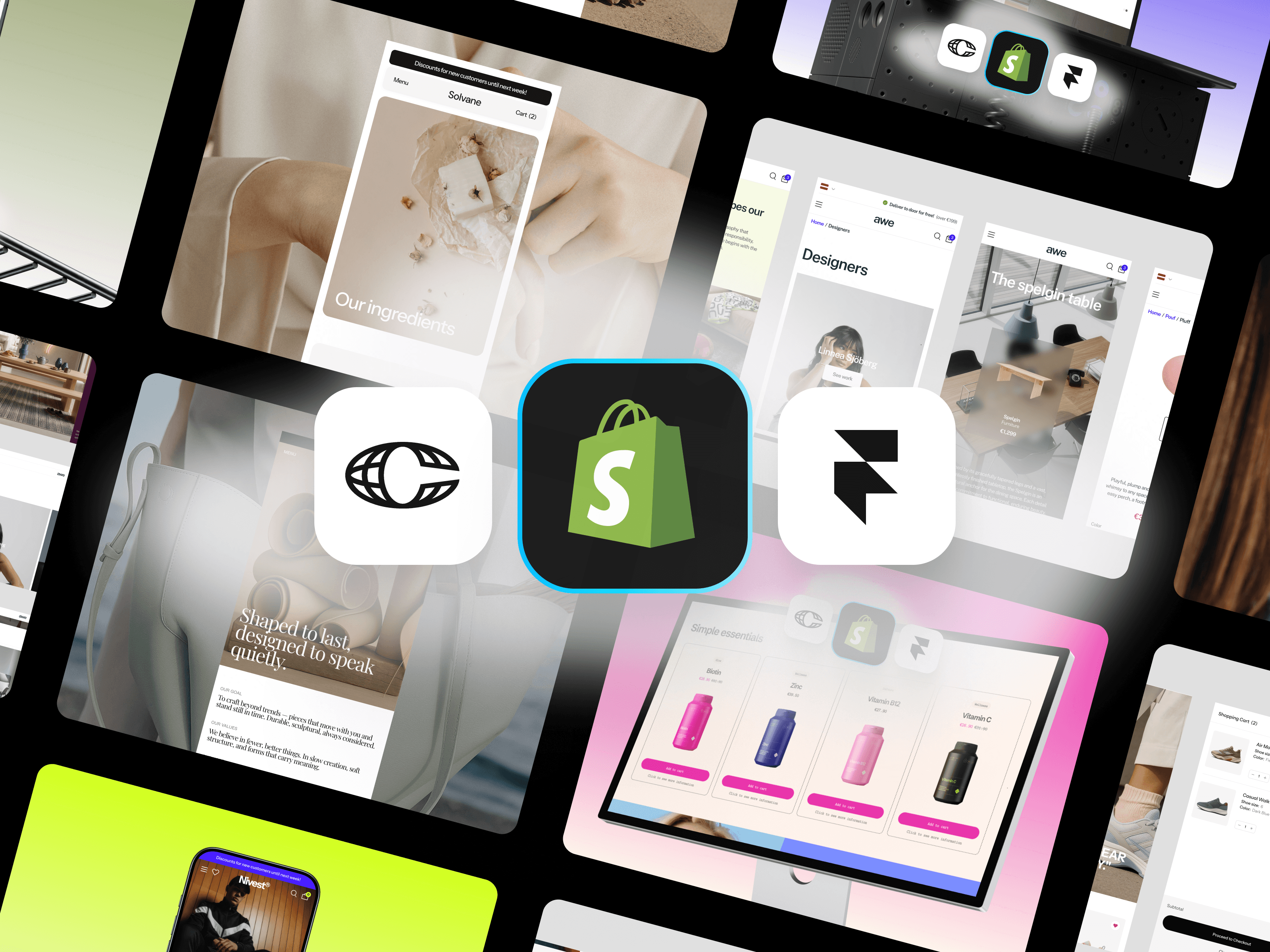
Using Framer as your storefront layer and Framer Commerce as the bridge to Shopify, you can now build a store that looks genuinely custom — designed to your exact specifications — without writing a line of code and without anyone else's timeline.
This guide is the practical walkthrough. By the end, you'll understand exactly what to set up, in what order, and what decisions to make at each step.
Three accounts and subscriptions power this stack:
A Shopify account (shopify.com). The Basic plan at $39/month is recommended for a full store experience. If you're just testing the stack, the $5/month Starter plan works for initial setup.
A Framer account (framer.com). Start free to explore the editor. You'll need a paid plan (Mini or Basic) to publish with a custom domain and access sufficient CMS capacity for a product catalog.
A Framer Commerce account (framercommerce.com). Plans start at $12/month. This is the integration layer connecting Framer to Shopify.
In addition, you'll need a Framer eCommerce template as your starting point. Templates from Framlix are built specifically for this stack and come pre-integrated with Framer Commerce.
Total monthly cost once set up: approximately $50–70 per month, depending on your Framer and Shopify plan tiers.
Create and Configure Your Shopify Store
If you don't already have a Shopify store, sign up at shopify.com and create a new store. During setup, you'll choose a store name (this becomes your myshopify.com subdomain), set your country and currency, and configure basic tax and shipping settings.
Critical: you do not need to set up a Shopify theme. Your Shopify store is purely a back-end infrastructure layer. The visual front-end will live in Framer. Shopify's job is to hold your product catalog, process orders, and manage payments.
Add Your Products
In your Shopify admin, navigate to Products and add your inventory. For each product, include:
A clear, SEO-optimized title
A thorough description with relevant keywords
High-quality images (multiple angles if applicable)
Accurate pricing and compare-at pricing if you're showing discounts
All variants (sizes, colors, materials) with their own inventory quantities
Product tags for collection filtering
Take time to get this data right before syncing to Framer. Clean product data in Shopify means clean product display in your Framer storefront. Messy data creates extra cleanup work later.
Configure Your Collections
Create Shopify collections to organize your products — these map to your store's category pages. Automated collections (rules-based) are easier to maintain than manual ones as your catalog grows. For example: 'All products tagged Skincare' creates a collection that auto-updates as you tag new products.
Set Up Payment Methods
In Shopify Settings > Payments, configure your preferred payment providers. Shopify Payments is the simplest option if available in your country — it integrates directly and enables Shop Pay, Apple Pay, and Google Pay automatically. If Shopify Payments isn't available, configure a third-party gateway like PayPal or Stripe.
Create Your Framer Commerce Account
Go to framercommerce.com and sign up for an account. Choose the plan that fits your store size — the entry-level plan handles most single-store setups.
Install the Shopify App
From your Framer Commerce dashboard, follow the instructions to install the Framer Commerce app on your Shopify store. You'll be redirected to Shopify's app installation flow. Grant the required permissions — Framer Commerce needs read access to your product catalog and write access for cart and checkout functionality.
Once installed, Framer Commerce will begin syncing your Shopify product catalog. Depending on catalog size, initial sync takes a few seconds to a few minutes.
Install the Framer Plugin
In Framer, navigate to the Plugins panel and install the Framer Commerce plugin. You'll log in with your Framer Commerce credentials to connect your workspace to your Shopify store integration.
This connection is what makes your Shopify product data available inside Framer as CMS collections.
Selecting the Right Template
Your template choice sets the visual foundation for everything that follows. When evaluating templates, consider:
Category fit: A template designed for a skincare brand communicates differently than one built for furniture or streetwear. Choose a template whose baseline aesthetic matches your brand's direction.
Layout structure: Review every page type included — homepage, collection pages, product detail pages, cart, about, and any category-specific pages. Make sure the structure matches your merchandising needs.
Component depth: Confirm the template includes all the eCommerce components you'll need — variant selectors, cart drawer, filtering, upsells, and so on.
Live preview: Use the template's live preview before purchasing. Click through the full purchase flow, test on mobile, and evaluate the animation and interaction quality.
Duplicating the Template Into Framer
After purchase, you'll receive access to the Framer template file. When you open the link and click Duplicate, Framer creates a full copy of the project in your workspace. This copy is entirely yours — you can edit, delete, or restructure anything.
Before making any changes, take a few minutes to explore the project structure. Templates from Framlix use a modular component architecture — understanding where components live will save you time during customization.
Syncing Your Product Catalog
In your Framer project, open the CMS panel. You'll see collections already set up in the template — typically a Shop collection for products and a Collections collection for category groupings. These are pre-configured to work with Framer Commerce's schema.
Through the Framer Commerce plugin panel, connect your Shopify store to these CMS collections. Your products will populate automatically. Depending on catalog size, this takes anywhere from a few seconds to a couple of minutes.
Once synced, each product page in the template will pull its content — title, description, images, variants, price — directly from Shopify. You don't need to manually enter product data in Framer.
Configuring Commerce Components
The template's Framer Commerce components — add-to-cart buttons, variant selectors, cart drawer, and so on — need to be pointed to your Framer Commerce connection. In most templates, this is handled automatically once your CMS is connected. Review each component type to verify it's reading data correctly.
Test the full flow in Framer's preview mode: click a product, select a variant, add to cart, open the cart drawer, and proceed to checkout. You should land on Shopify's checkout page with the correct product and variant selected.
Fact
Pro tip: Create a test product in Shopify with a price of $0.01 and use it for checkout testing. Complete a real purchase to verify the full flow end-to-end before going live.
Global Styles First
Start with the design elements that affect your entire store:
Brand colors: In Framer, open the Variables panel and update your primary, secondary, and accent color variables. These cascade across every instance of those colors throughout the template.
Typography: Update the font family, weights, and size scales to match your brand. Framer supports Google Fonts natively and custom fonts via upload.
Logo: Replace the template's placeholder logo with yours. If you're using an SVG, Framer handles it natively. For raster logos, ensure you're uploading a high-resolution version.
Spacing and container widths: Review the template's default max-width and section padding settings. Adjust these to match your brand's density preference — tighter for premium, more spacious for editorial.
Making these global changes first means they apply everywhere at once. You're not hunting through individual pages to update each instance.
Page-by-Page Refinements
With global styles set, work through each page type:
Homepage: Update all copy, swap in your hero imagery or video, and adjust section order to match your merchandising priorities. You can reorder sections by dragging in Framer's layer panel.
Collection pages: Review how your product cards display at different grid densities. Adjust the card design if needed to fit your product imagery aspect ratios.
Product detail pages: Ensure your product images display at the right aspect ratio. Update any placeholder copy in feature callout sections. If your products have specific feature categories (ingredients, materials, certifications), customize those sections.
Cart: Review the upsell and cross-sell configuration. Framer Commerce's cart components support showing related products — configure these to pull from the right collections.
Supporting pages: Update About, Contact, FAQ, and any other brand-story pages with your actual content.
Mobile Review
Switch to Framer's tablet and mobile breakpoint views and review every page type. Templates are built mobile-responsive, but your specific content — image aspect ratios, copy length, product names — may create edge cases that need minor adjustments. Spend time here; most of your traffic will come from mobile.
Before publishing, run through these verification steps:
Complete a real test purchase end-to-end — confirm order appears in Shopify
Test on actual mobile devices, not just Framer's simulator
Verify all product variants display correctly with accurate pricing
Check that sold-out products show the correct unavailable state
Set meta titles and descriptions for all key pages in Framer's SEO panel
Configure your favicon and social sharing image (Open Graph) in Framer settings
Review page load speed using Framer's built-in performance panel
Test discount code application in the cart
Verify your checkout currency matches your Shopify settings
Confirm your Shopify email notifications are configured for order confirmations
When you're satisfied with the design and have verified the full purchase flow, it's time to publish.
In Framer, go to Publish settings and connect your custom domain. If you purchased a domain through a registrar like Namecheap or GoDaddy, you'll point your domain's DNS records to Framer's servers. Framer provides exact instructions for this — it typically takes a few minutes to a few hours for DNS propagation.
If you previously had a Shopify-hosted storefront on that domain, update the DNS records to point to Framer instead. Your Shopify store continues running on its myshopify.com URL and processes orders normally — you're just changing where the customer-facing storefront lives.
Hit publish. Your store is live.
The advantage of building in Framer is that iteration is fast. Once you're live and seeing real customer behavior:
Use Shopify's analytics to understand which products convert and which get abandoned. Adjust your product page layouts accordingly.
A/B test homepage hero sections using Framer's built-in variant system.
Add new sections as your brand evolves — Framer makes this drag-and-drop.
Update promotional banners and featured product selections in minutes, not development tickets.
The store you launch on day one will be better than any Shopify theme you've used. The store you have six months later will be better still — because you can actually iterate on it.
The standard advice for building a custom Shopify store has always been: hire a developer. Find a Liquid specialist, brief them on your vision, wait 8–12 weeks, and pay somewhere between $8,000 and $40,000 depending on scope. Then hope the result matches what you had in mind.
That advice is outdated.
Using Framer as your storefront layer and Framer Commerce as the bridge to Shopify, you can now build a store that looks genuinely custom — designed to your exact specifications — without writing a line of code and without anyone else's timeline.
This guide is the practical walkthrough. By the end, you'll understand exactly what to set up, in what order, and what decisions to make at each step.
Three accounts and subscriptions power this stack:
A Shopify account (shopify.com). The Basic plan at $39/month is recommended for a full store experience. If you're just testing the stack, the $5/month Starter plan works for initial setup.
A Framer account (framer.com). Start free to explore the editor. You'll need a paid plan (Mini or Basic) to publish with a custom domain and access sufficient CMS capacity for a product catalog.
A Framer Commerce account (framercommerce.com). Plans start at $12/month. This is the integration layer connecting Framer to Shopify.
In addition, you'll need a Framer eCommerce template as your starting point. Templates from Framlix are built specifically for this stack and come pre-integrated with Framer Commerce.
Total monthly cost once set up: approximately $50–70 per month, depending on your Framer and Shopify plan tiers.
Create and Configure Your Shopify Store
If you don't already have a Shopify store, sign up at shopify.com and create a new store. During setup, you'll choose a store name (this becomes your myshopify.com subdomain), set your country and currency, and configure basic tax and shipping settings.
Critical: you do not need to set up a Shopify theme. Your Shopify store is purely a back-end infrastructure layer. The visual front-end will live in Framer. Shopify's job is to hold your product catalog, process orders, and manage payments.
Add Your Products
In your Shopify admin, navigate to Products and add your inventory. For each product, include:
A clear, SEO-optimized title
A thorough description with relevant keywords
High-quality images (multiple angles if applicable)
Accurate pricing and compare-at pricing if you're showing discounts
All variants (sizes, colors, materials) with their own inventory quantities
Product tags for collection filtering
Take time to get this data right before syncing to Framer. Clean product data in Shopify means clean product display in your Framer storefront. Messy data creates extra cleanup work later.
Configure Your Collections
Create Shopify collections to organize your products — these map to your store's category pages. Automated collections (rules-based) are easier to maintain than manual ones as your catalog grows. For example: 'All products tagged Skincare' creates a collection that auto-updates as you tag new products.
Set Up Payment Methods
In Shopify Settings > Payments, configure your preferred payment providers. Shopify Payments is the simplest option if available in your country — it integrates directly and enables Shop Pay, Apple Pay, and Google Pay automatically. If Shopify Payments isn't available, configure a third-party gateway like PayPal or Stripe.
Create Your Framer Commerce Account
Go to framercommerce.com and sign up for an account. Choose the plan that fits your store size — the entry-level plan handles most single-store setups.
Install the Shopify App
From your Framer Commerce dashboard, follow the instructions to install the Framer Commerce app on your Shopify store. You'll be redirected to Shopify's app installation flow. Grant the required permissions — Framer Commerce needs read access to your product catalog and write access for cart and checkout functionality.
Once installed, Framer Commerce will begin syncing your Shopify product catalog. Depending on catalog size, initial sync takes a few seconds to a few minutes.
Install the Framer Plugin
In Framer, navigate to the Plugins panel and install the Framer Commerce plugin. You'll log in with your Framer Commerce credentials to connect your workspace to your Shopify store integration.
This connection is what makes your Shopify product data available inside Framer as CMS collections.
Selecting the Right Template
Your template choice sets the visual foundation for everything that follows. When evaluating templates, consider:
Category fit: A template designed for a skincare brand communicates differently than one built for furniture or streetwear. Choose a template whose baseline aesthetic matches your brand's direction.
Layout structure: Review every page type included — homepage, collection pages, product detail pages, cart, about, and any category-specific pages. Make sure the structure matches your merchandising needs.
Component depth: Confirm the template includes all the eCommerce components you'll need — variant selectors, cart drawer, filtering, upsells, and so on.
Live preview: Use the template's live preview before purchasing. Click through the full purchase flow, test on mobile, and evaluate the animation and interaction quality.
Duplicating the Template Into Framer
After purchase, you'll receive access to the Framer template file. When you open the link and click Duplicate, Framer creates a full copy of the project in your workspace. This copy is entirely yours — you can edit, delete, or restructure anything.
Before making any changes, take a few minutes to explore the project structure. Templates from Framlix use a modular component architecture — understanding where components live will save you time during customization.
Syncing Your Product Catalog
In your Framer project, open the CMS panel. You'll see collections already set up in the template — typically a Shop collection for products and a Collections collection for category groupings. These are pre-configured to work with Framer Commerce's schema.
Through the Framer Commerce plugin panel, connect your Shopify store to these CMS collections. Your products will populate automatically. Depending on catalog size, this takes anywhere from a few seconds to a couple of minutes.
Once synced, each product page in the template will pull its content — title, description, images, variants, price — directly from Shopify. You don't need to manually enter product data in Framer.
Configuring Commerce Components
The template's Framer Commerce components — add-to-cart buttons, variant selectors, cart drawer, and so on — need to be pointed to your Framer Commerce connection. In most templates, this is handled automatically once your CMS is connected. Review each component type to verify it's reading data correctly.
Test the full flow in Framer's preview mode: click a product, select a variant, add to cart, open the cart drawer, and proceed to checkout. You should land on Shopify's checkout page with the correct product and variant selected.
Fact
Pro tip: Create a test product in Shopify with a price of $0.01 and use it for checkout testing. Complete a real purchase to verify the full flow end-to-end before going live.
Global Styles First
Start with the design elements that affect your entire store:
Brand colors: In Framer, open the Variables panel and update your primary, secondary, and accent color variables. These cascade across every instance of those colors throughout the template.
Typography: Update the font family, weights, and size scales to match your brand. Framer supports Google Fonts natively and custom fonts via upload.
Logo: Replace the template's placeholder logo with yours. If you're using an SVG, Framer handles it natively. For raster logos, ensure you're uploading a high-resolution version.
Spacing and container widths: Review the template's default max-width and section padding settings. Adjust these to match your brand's density preference — tighter for premium, more spacious for editorial.
Making these global changes first means they apply everywhere at once. You're not hunting through individual pages to update each instance.
Page-by-Page Refinements
With global styles set, work through each page type:
Homepage: Update all copy, swap in your hero imagery or video, and adjust section order to match your merchandising priorities. You can reorder sections by dragging in Framer's layer panel.
Collection pages: Review how your product cards display at different grid densities. Adjust the card design if needed to fit your product imagery aspect ratios.
Product detail pages: Ensure your product images display at the right aspect ratio. Update any placeholder copy in feature callout sections. If your products have specific feature categories (ingredients, materials, certifications), customize those sections.
Cart: Review the upsell and cross-sell configuration. Framer Commerce's cart components support showing related products — configure these to pull from the right collections.
Supporting pages: Update About, Contact, FAQ, and any other brand-story pages with your actual content.
Mobile Review
Switch to Framer's tablet and mobile breakpoint views and review every page type. Templates are built mobile-responsive, but your specific content — image aspect ratios, copy length, product names — may create edge cases that need minor adjustments. Spend time here; most of your traffic will come from mobile.
Before publishing, run through these verification steps:
Complete a real test purchase end-to-end — confirm order appears in Shopify
Test on actual mobile devices, not just Framer's simulator
Verify all product variants display correctly with accurate pricing
Check that sold-out products show the correct unavailable state
Set meta titles and descriptions for all key pages in Framer's SEO panel
Configure your favicon and social sharing image (Open Graph) in Framer settings
Review page load speed using Framer's built-in performance panel
Test discount code application in the cart
Verify your checkout currency matches your Shopify settings
Confirm your Shopify email notifications are configured for order confirmations
When you're satisfied with the design and have verified the full purchase flow, it's time to publish.
In Framer, go to Publish settings and connect your custom domain. If you purchased a domain through a registrar like Namecheap or GoDaddy, you'll point your domain's DNS records to Framer's servers. Framer provides exact instructions for this — it typically takes a few minutes to a few hours for DNS propagation.
If you previously had a Shopify-hosted storefront on that domain, update the DNS records to point to Framer instead. Your Shopify store continues running on its myshopify.com URL and processes orders normally — you're just changing where the customer-facing storefront lives.
Hit publish. Your store is live.
The advantage of building in Framer is that iteration is fast. Once you're live and seeing real customer behavior:
Use Shopify's analytics to understand which products convert and which get abandoned. Adjust your product page layouts accordingly.
A/B test homepage hero sections using Framer's built-in variant system.
Add new sections as your brand evolves — Framer makes this drag-and-drop.
Update promotional banners and featured product selections in minutes, not development tickets.
The store you launch on day one will be better than any Shopify theme you've used. The store you have six months later will be better still — because you can actually iterate on it.
The standard advice for building a custom Shopify store has always been: hire a developer. Find a Liquid specialist, brief them on your vision, wait 8–12 weeks, and pay somewhere between $8,000 and $40,000 depending on scope. Then hope the result matches what you had in mind.
That advice is outdated.
Using Framer as your storefront layer and Framer Commerce as the bridge to Shopify, you can now build a store that looks genuinely custom — designed to your exact specifications — without writing a line of code and without anyone else's timeline.
This guide is the practical walkthrough. By the end, you'll understand exactly what to set up, in what order, and what decisions to make at each step.
Three accounts and subscriptions power this stack:
A Shopify account (shopify.com). The Basic plan at $39/month is recommended for a full store experience. If you're just testing the stack, the $5/month Starter plan works for initial setup.
A Framer account (framer.com). Start free to explore the editor. You'll need a paid plan (Mini or Basic) to publish with a custom domain and access sufficient CMS capacity for a product catalog.
A Framer Commerce account (framercommerce.com). Plans start at $12/month. This is the integration layer connecting Framer to Shopify.
In addition, you'll need a Framer eCommerce template as your starting point. Templates from Framlix are built specifically for this stack and come pre-integrated with Framer Commerce.
Total monthly cost once set up: approximately $50–70 per month, depending on your Framer and Shopify plan tiers.
Create and Configure Your Shopify Store
If you don't already have a Shopify store, sign up at shopify.com and create a new store. During setup, you'll choose a store name (this becomes your myshopify.com subdomain), set your country and currency, and configure basic tax and shipping settings.
Critical: you do not need to set up a Shopify theme. Your Shopify store is purely a back-end infrastructure layer. The visual front-end will live in Framer. Shopify's job is to hold your product catalog, process orders, and manage payments.
Add Your Products
In your Shopify admin, navigate to Products and add your inventory. For each product, include:
A clear, SEO-optimized title
A thorough description with relevant keywords
High-quality images (multiple angles if applicable)
Accurate pricing and compare-at pricing if you're showing discounts
All variants (sizes, colors, materials) with their own inventory quantities
Product tags for collection filtering
Take time to get this data right before syncing to Framer. Clean product data in Shopify means clean product display in your Framer storefront. Messy data creates extra cleanup work later.
Configure Your Collections
Create Shopify collections to organize your products — these map to your store's category pages. Automated collections (rules-based) are easier to maintain than manual ones as your catalog grows. For example: 'All products tagged Skincare' creates a collection that auto-updates as you tag new products.
Set Up Payment Methods
In Shopify Settings > Payments, configure your preferred payment providers. Shopify Payments is the simplest option if available in your country — it integrates directly and enables Shop Pay, Apple Pay, and Google Pay automatically. If Shopify Payments isn't available, configure a third-party gateway like PayPal or Stripe.
Create Your Framer Commerce Account
Go to framercommerce.com and sign up for an account. Choose the plan that fits your store size — the entry-level plan handles most single-store setups.
Install the Shopify App
From your Framer Commerce dashboard, follow the instructions to install the Framer Commerce app on your Shopify store. You'll be redirected to Shopify's app installation flow. Grant the required permissions — Framer Commerce needs read access to your product catalog and write access for cart and checkout functionality.
Once installed, Framer Commerce will begin syncing your Shopify product catalog. Depending on catalog size, initial sync takes a few seconds to a few minutes.
Install the Framer Plugin
In Framer, navigate to the Plugins panel and install the Framer Commerce plugin. You'll log in with your Framer Commerce credentials to connect your workspace to your Shopify store integration.
This connection is what makes your Shopify product data available inside Framer as CMS collections.
Selecting the Right Template
Your template choice sets the visual foundation for everything that follows. When evaluating templates, consider:
Category fit: A template designed for a skincare brand communicates differently than one built for furniture or streetwear. Choose a template whose baseline aesthetic matches your brand's direction.
Layout structure: Review every page type included — homepage, collection pages, product detail pages, cart, about, and any category-specific pages. Make sure the structure matches your merchandising needs.
Component depth: Confirm the template includes all the eCommerce components you'll need — variant selectors, cart drawer, filtering, upsells, and so on.
Live preview: Use the template's live preview before purchasing. Click through the full purchase flow, test on mobile, and evaluate the animation and interaction quality.
Duplicating the Template Into Framer
After purchase, you'll receive access to the Framer template file. When you open the link and click Duplicate, Framer creates a full copy of the project in your workspace. This copy is entirely yours — you can edit, delete, or restructure anything.
Before making any changes, take a few minutes to explore the project structure. Templates from Framlix use a modular component architecture — understanding where components live will save you time during customization.
Syncing Your Product Catalog
In your Framer project, open the CMS panel. You'll see collections already set up in the template — typically a Shop collection for products and a Collections collection for category groupings. These are pre-configured to work with Framer Commerce's schema.
Through the Framer Commerce plugin panel, connect your Shopify store to these CMS collections. Your products will populate automatically. Depending on catalog size, this takes anywhere from a few seconds to a couple of minutes.
Once synced, each product page in the template will pull its content — title, description, images, variants, price — directly from Shopify. You don't need to manually enter product data in Framer.
Configuring Commerce Components
The template's Framer Commerce components — add-to-cart buttons, variant selectors, cart drawer, and so on — need to be pointed to your Framer Commerce connection. In most templates, this is handled automatically once your CMS is connected. Review each component type to verify it's reading data correctly.
Test the full flow in Framer's preview mode: click a product, select a variant, add to cart, open the cart drawer, and proceed to checkout. You should land on Shopify's checkout page with the correct product and variant selected.
Fact
Pro tip: Create a test product in Shopify with a price of $0.01 and use it for checkout testing. Complete a real purchase to verify the full flow end-to-end before going live.
Global Styles First
Start with the design elements that affect your entire store:
Brand colors: In Framer, open the Variables panel and update your primary, secondary, and accent color variables. These cascade across every instance of those colors throughout the template.
Typography: Update the font family, weights, and size scales to match your brand. Framer supports Google Fonts natively and custom fonts via upload.
Logo: Replace the template's placeholder logo with yours. If you're using an SVG, Framer handles it natively. For raster logos, ensure you're uploading a high-resolution version.
Spacing and container widths: Review the template's default max-width and section padding settings. Adjust these to match your brand's density preference — tighter for premium, more spacious for editorial.
Making these global changes first means they apply everywhere at once. You're not hunting through individual pages to update each instance.
Page-by-Page Refinements
With global styles set, work through each page type:
Homepage: Update all copy, swap in your hero imagery or video, and adjust section order to match your merchandising priorities. You can reorder sections by dragging in Framer's layer panel.
Collection pages: Review how your product cards display at different grid densities. Adjust the card design if needed to fit your product imagery aspect ratios.
Product detail pages: Ensure your product images display at the right aspect ratio. Update any placeholder copy in feature callout sections. If your products have specific feature categories (ingredients, materials, certifications), customize those sections.
Cart: Review the upsell and cross-sell configuration. Framer Commerce's cart components support showing related products — configure these to pull from the right collections.
Supporting pages: Update About, Contact, FAQ, and any other brand-story pages with your actual content.
Mobile Review
Switch to Framer's tablet and mobile breakpoint views and review every page type. Templates are built mobile-responsive, but your specific content — image aspect ratios, copy length, product names — may create edge cases that need minor adjustments. Spend time here; most of your traffic will come from mobile.
Before publishing, run through these verification steps:
Complete a real test purchase end-to-end — confirm order appears in Shopify
Test on actual mobile devices, not just Framer's simulator
Verify all product variants display correctly with accurate pricing
Check that sold-out products show the correct unavailable state
Set meta titles and descriptions for all key pages in Framer's SEO panel
Configure your favicon and social sharing image (Open Graph) in Framer settings
Review page load speed using Framer's built-in performance panel
Test discount code application in the cart
Verify your checkout currency matches your Shopify settings
Confirm your Shopify email notifications are configured for order confirmations
When you're satisfied with the design and have verified the full purchase flow, it's time to publish.
In Framer, go to Publish settings and connect your custom domain. If you purchased a domain through a registrar like Namecheap or GoDaddy, you'll point your domain's DNS records to Framer's servers. Framer provides exact instructions for this — it typically takes a few minutes to a few hours for DNS propagation.
If you previously had a Shopify-hosted storefront on that domain, update the DNS records to point to Framer instead. Your Shopify store continues running on its myshopify.com URL and processes orders normally — you're just changing where the customer-facing storefront lives.
Hit publish. Your store is live.
The advantage of building in Framer is that iteration is fast. Once you're live and seeing real customer behavior:
Use Shopify's analytics to understand which products convert and which get abandoned. Adjust your product page layouts accordingly.
A/B test homepage hero sections using Framer's built-in variant system.
Add new sections as your brand evolves — Framer makes this drag-and-drop.
Update promotional banners and featured product selections in minutes, not development tickets.
The store you launch on day one will be better than any Shopify theme you've used. The store you have six months later will be better still — because you can actually iterate on it.

No code required
No code required
Best eCommerce templates
Best eCommerce templates
Fast and direct help
Fast and direct help

Creator of Framlix
Digital designer with 4+ years of experience in branding, web, and UI. Former London design studio. Now at Framer Commerce — and building Framlix, high-quality Framer e-commerce templates with native Shopify integration.
All articles
eCommerce Strategy
11 min read
Shopify & Platform
10 min read
Tools & Reviews
11 min read
Templates & Inspiration
14 min read